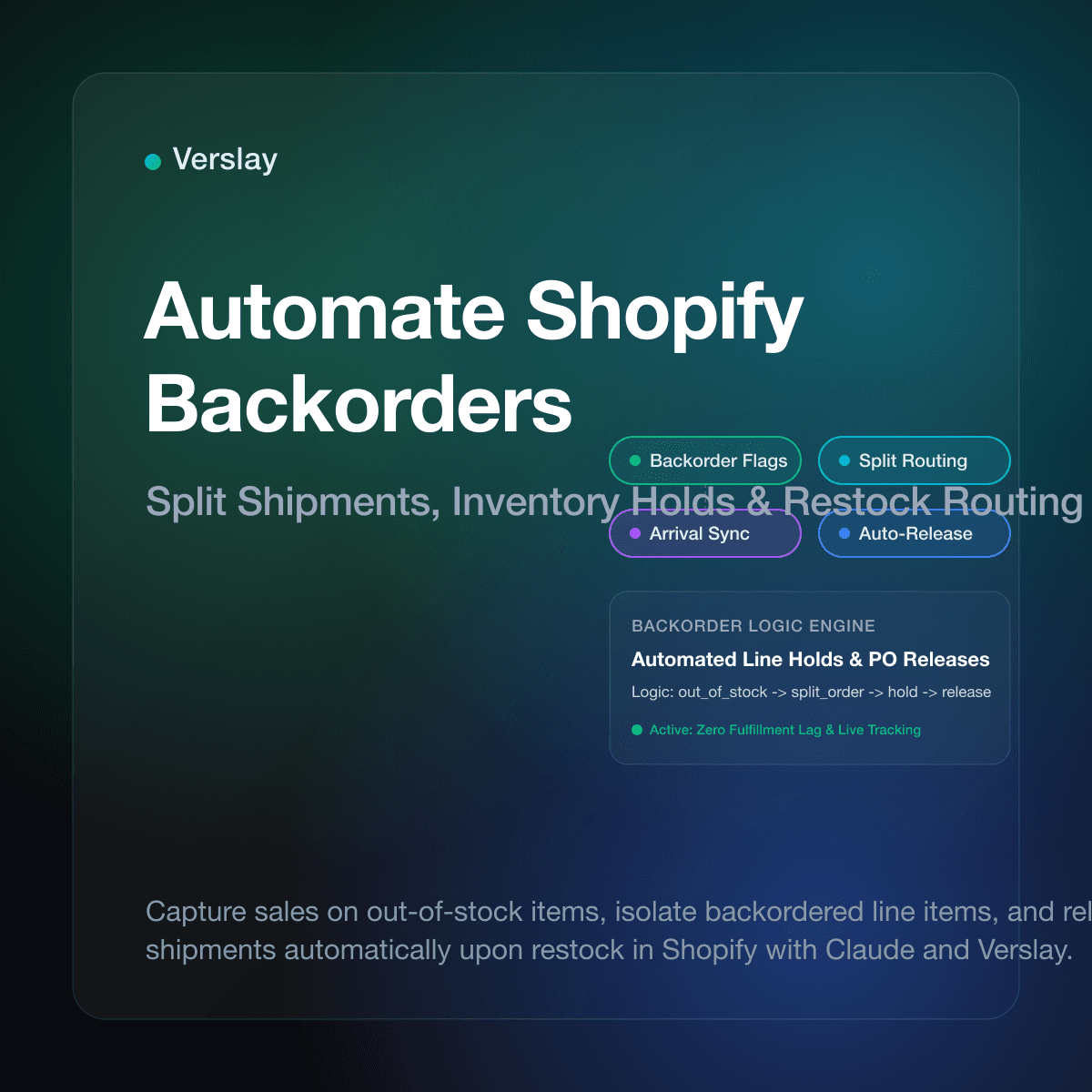
Merchants can automate Shopify backorder management by configuring inventory policies to allow sales when stock reaches zero, applying automated fulfillment holds to protect warehouse queues, and syncing supplier delivery dates with scheduled customer notifications. Instead of relying on manual spreadsheets or risking accidental fulfillment of missing products, automated rules split multi-item carts so in-stock items ship right away while backordered lines wait for restock receipts.
At a glance
- Continuous revenue: Capture customer purchases during unexpected stockouts while displaying realistic shipping windows on product pages.
- Automated fulfillment holds: Prevent warehouse teams from trying to pick missing inventory by placing backordered line items on automatic hold.
- Split order routing: Ship ready products immediately without canceling or stranding the customer's secondary items.
- Supplier arrival matching: Reallocate received purchase orders directly to open backorders using chronological queue logic.
- Proactive customer updates: Eliminate support inbox tickets by sending status notifications as inventory moves from supplier transit to the warehouse.
Why does manual backorder handling fail on Shopify?
Accepting orders for out-of-stock inventory is one of the fastest ways for a store to preserve sales velocity. However, managing backorders by hand introduces severe friction across inventory records, warehouse operations, and customer support desks.
When a store enables the standard Shopify setting to continue selling when out of stock without automated routing, every backordered transaction lands in the unfulfilled orders queue alongside regular in-stock shipments. Warehouse pickers have no immediate visual indicator that an item is missing from shelves until they physically search the bin. This causes wasted packing labor, delayed fulfillment cycles for other customer orders, and frequent partial shipments that never get properly logged in store records.
Furthermore, mixed carts compound the problem. When a customer orders three items that are currently in stock and one item that is on backorder, manual teams often delay the entire package for weeks. Shoppers who expected fast delivery become frustrated, file chargebacks, or flood customer service desks with repetitive status inquiries. According to the Shopify Help Center inventory tracking guide, maintaining explicit inventory control across multiple fulfillment locations requires disciplined state management. Relying on customer support agents to check spreadsheets daily creates constant inventory discrepancies and lost buyer trust.
How do you configure Shopify inventory policies to accept backorders?
Setting up automated backorder handling begins with native inventory configuration inside your Shopify admin dashboard. Each product variant must communicate clearly to both the shopping cart and downstream fulfillment systems that it is eligible for backorder fulfillment.
First, navigate to your product catalog and locate the items with regular supplier replenishment cycles. In the variant inventory section, check the box labeled Continue selling when out of stock. To maintain clear operational records, ensure that inventory tracking remains checked so Shopify maintains a negative quantity ledger as units sell below zero.
| Configuration Element | Manual Approach | Automated Architecture | Store Benefit |
| :--- | :--- | :--- | :--- |
| Inventory Threshold | Manual stock updates | Real-time negative inventory tracking | Zero lost conversions |
| Order Triage | Daily spreadsheet reviews | Instant backorder-pending order tags | Prevents picking errors |
| Fulfillment Status | Global order hold | Line-item fulfillment order holds | In-stock items ship fast |
| Restock Allocation | Manual order searching | First-in, first-out automated allocation | Fair and fast delivery |
| Customer Comms | Reactive inbox answers | Automated milestone notifications | Drops WISMO ticket volume |
Second, adjust your store theme and cart logic to display honest delivery windows. When a product inventory level drops to zero or below, your product page should replace the standard "In Stock" indicator with a clear note such as "Backorder: Ships within 10 to 14 days." This sets clear customer expectations at the exact moment of purchase and significantly lowers post-purchase cancellation requests.
How do you automate split fulfillments for mixed carts?
The most critical operational step in modern ecommerce fulfillment is separating available items from delayed lines. Under standard fulfillment flows, an order with four items remains locked until all lines are ready to ship, which unnecessarily penalizes the customer.
Modern Shopify architectures utilize the Shopify Fulfillment Orders API to split fulfillment requests into distinct packages. When an order completes checkout, an automated rule inspects the inventory balance of each line item against the designated warehouse location.
Incoming Order (#14820)
  ├── Item A (In Stock: 4 units)    --> Fulfillment Group 1: Release to Warehouse
  └── Item B (In Stock: 0 units)    --> Fulfillment Group 2: Apply Hold (Reason: Awaiting Inventory)
By applying an automated fulfillment hold on Item B, the warehouse management system (WMS) receives an instruction to pick and pack Item A immediately. The second fulfillment record remains in a held status until a restock event occurs. This ensures that the shopper receives their immediate goods quickly, while your store captures the full cart value upfront without incurring manual split fees.
How do you connect supplier purchase orders to backordered customer lines?
Backorders are only as dependable as your supplier visibility. If your warehouse receives fifty units of a popular jacket but staff do not know which customers bought those items two weeks ago, stock gets sold to new website visitors while backorder customers remain waiting.
To prevent this stock leakage, stores connect their incoming purchase orders directly to Shopify order queues. When a supplier confirms a shipment with an estimated time of arrival (ETA), that restock date attaches to the corresponding product variant. You can inspect your operational connections and third-party setups through Verslay integrations.
When boxes arrive at the loading dock and receiving staff scan the inventory into Shopify via the Shopify Inventory Level API, an automated trigger executes:
- The system identifies all open orders containing the restocked variant with an active fulfillment hold.
- Orders are sorted chronologically by checkout timestamp to enforce fair first-in, first-out (FIFO) allocation.
- The inventory quantity increases, and the fulfillment hold on matching orders releases automatically.
- Fulfillment records move to the warehouse queue for instant packing and shipping label generation.
By matching receipts directly to existing customer commitments, stores eliminate accidental stock theft by new cart checkouts and dramatically shorten customer waiting periods.
How does automated backorder orchestration work with Claude and Verslay?
Growing online retailers often lack dedicated engineering teams to build custom middleware between inventory databases, email platforms, and fulfillment centers. Verslay bridges this gap by providing practical AI agents and automations that run directly through the merchant's own Claude (claude.ai) account using the Verslay MCP server.
Because Verslay operates without requiring custom code or hosting AI models on the merchant's private servers, store operations leads can monitor and execute backorder policies in conversational language. Explore how specialized automations work across catalog and order flows in Verslay use-cases and discover dedicated roles in Verslay agents.
For example, an operations manager can open Claude and provide a direct prompt:
"Check Shopify for all unfulfilled orders tagged with 'backorder-pending'. Compare their line items against today's received purchase order for SKU-8841. Release the fulfillment hold for the oldest 35 matching orders and draft a batch delivery update to those customers confirming their packages will ship tomorrow."
Claude queries the Verslay MCP server, inspects the current inventory level, verifies that the oldest 35 orders receive priority allocation, releases the fulfillment holds in Shopify, and prepares delivery notices without touching an external spreadsheet. Review straightforward pricing tiers for growing teams on the Verslay pricing page.
For detailed setup instructions on linking your store catalog securely to Claude, refer to our comprehensive Shopify connection guide.
Frequently asked questions about Shopify backorder automation
How to allow backorders on Shopify without fulfillment errors?
To allow backorders safely, check the "Continue selling when out of stock" option on target product variants while maintaining active inventory tracking. Combine this setting with automated tagging rules that place incoming zero-stock orders on fulfillment hold. This prevents warehouse staff from attempting to pick unavailable goods until replacement inventory arrives.
How do you automate order splitting for backordered items?
Order splitting is automated through Shopify fulfillment orders. When a customer checkout includes both in-stock and out-of-stock items, the automation partitions the order into separate fulfillment groups. The in-stock group releases to your fulfillment center immediately, while the backordered group remains paused with an inventory hold flag.
How to track incoming supplier purchase orders against Shopify backorders?
You track incoming supplier orders by logging purchase order expected arrival dates directly against product records or your inventory management system. When receiving staff scan the arriving shipment at the warehouse, an automated webhook queries open backordered lines and releases holds in chronological order.
How do automated notifications keep backorder shoppers informed?
Automated notification workflows monitor fulfillment order status changes and send proactive email or SMS updates at each milestone. Shoppers receive immediate confirmation that their item is reserved, progress updates when goods arrive at the distribution hub, and final tracking links once the shipping label prints.
Automating your backorder workflows preserves revenue, protects customer loyalty, and keeps fulfillment teams productive without manual spreadsheet chaos. If you want to see how Verslay connects Claude to your store operations to automate order routing and inventory holds, book a quick 30-minute consultation with our team.